

WARNING:
Model downloads are provided by third-party publishers (e.g., Hugging Face / Civitai). You must read and agree to the publisher’s license and terms before downloading.
CloudDock only provides links and is not responsible for any third-party content, licenses, or usage.
CloudDock’s App Store includes a Model Store that lists popular AI models. Each model card takes you to the official publisher page. Downloads happen on the publisher’s website.
Tip:
Some publishers require a login account, age confirmation, token, or additional agreements. If the download button is missing, check the publisher’s page requirements.
1Open CloudDock Launcher
On the desktop, find CloudDock Launcher and double-click to open it.
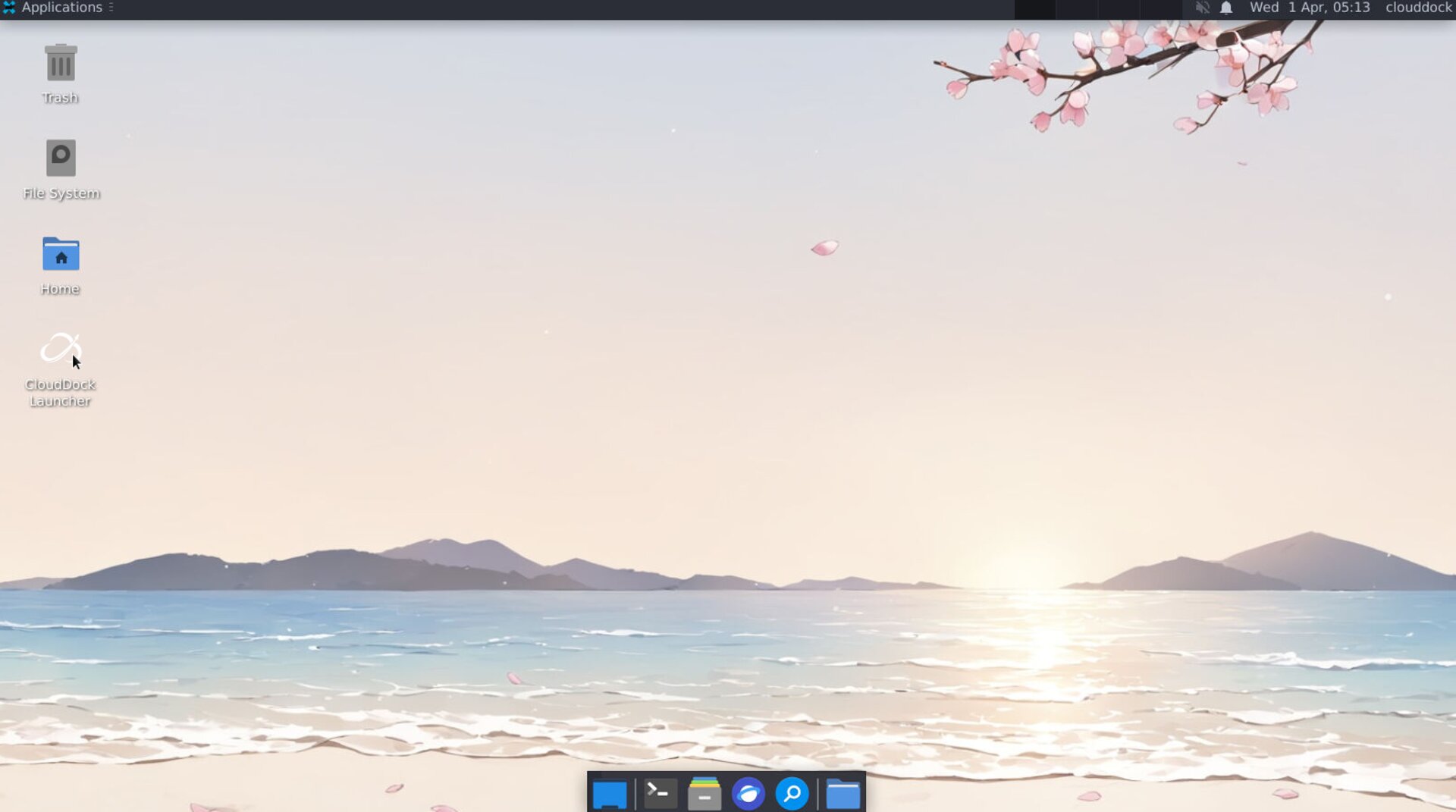
Open CloudDock Launcher.
2Go to the App Store → Model Store
In Launcher, open the App Store, then locate the Model Store section (or a "Models" category).
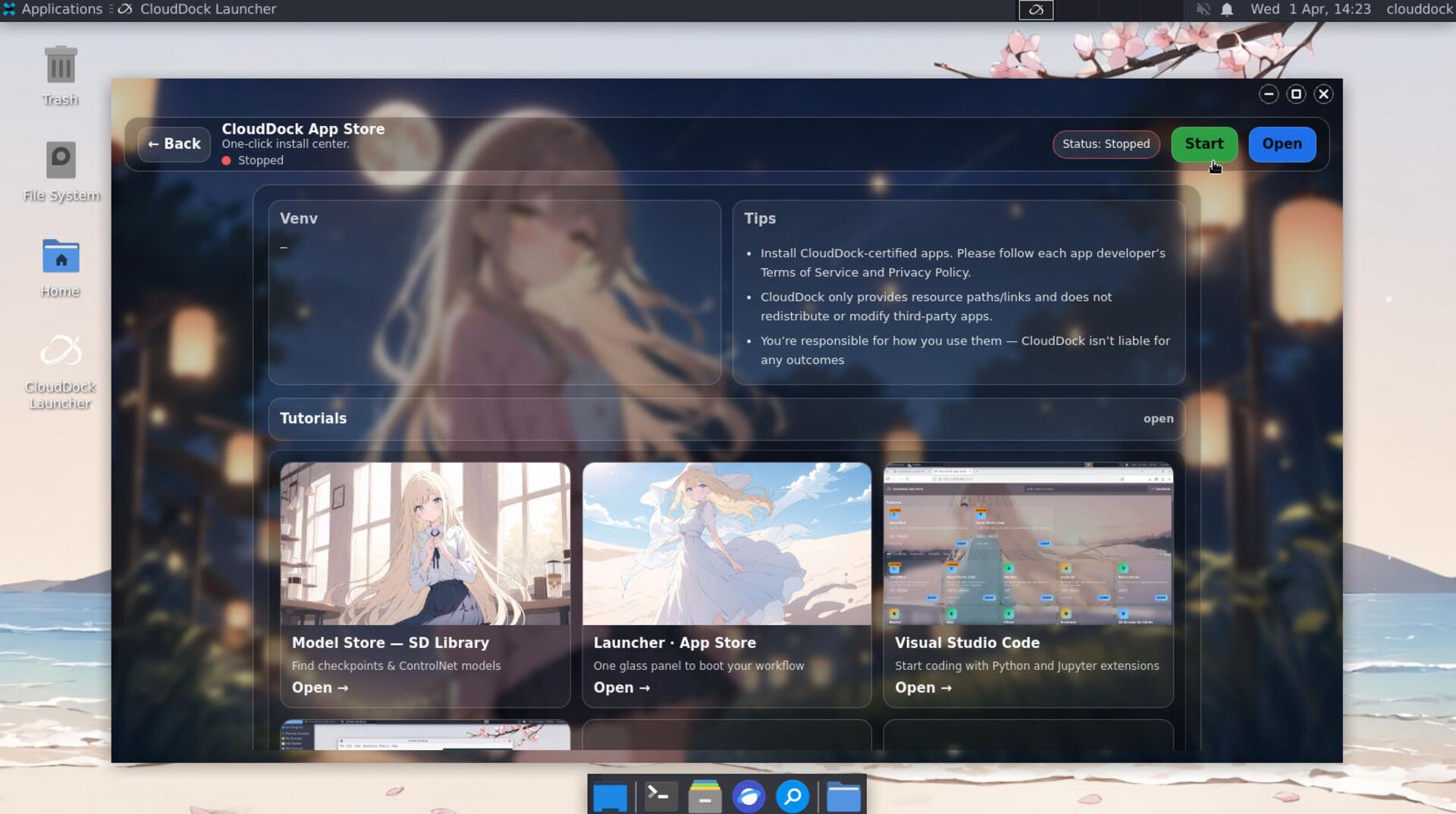
App Store → Model Store.
Browse or search for the model you want.
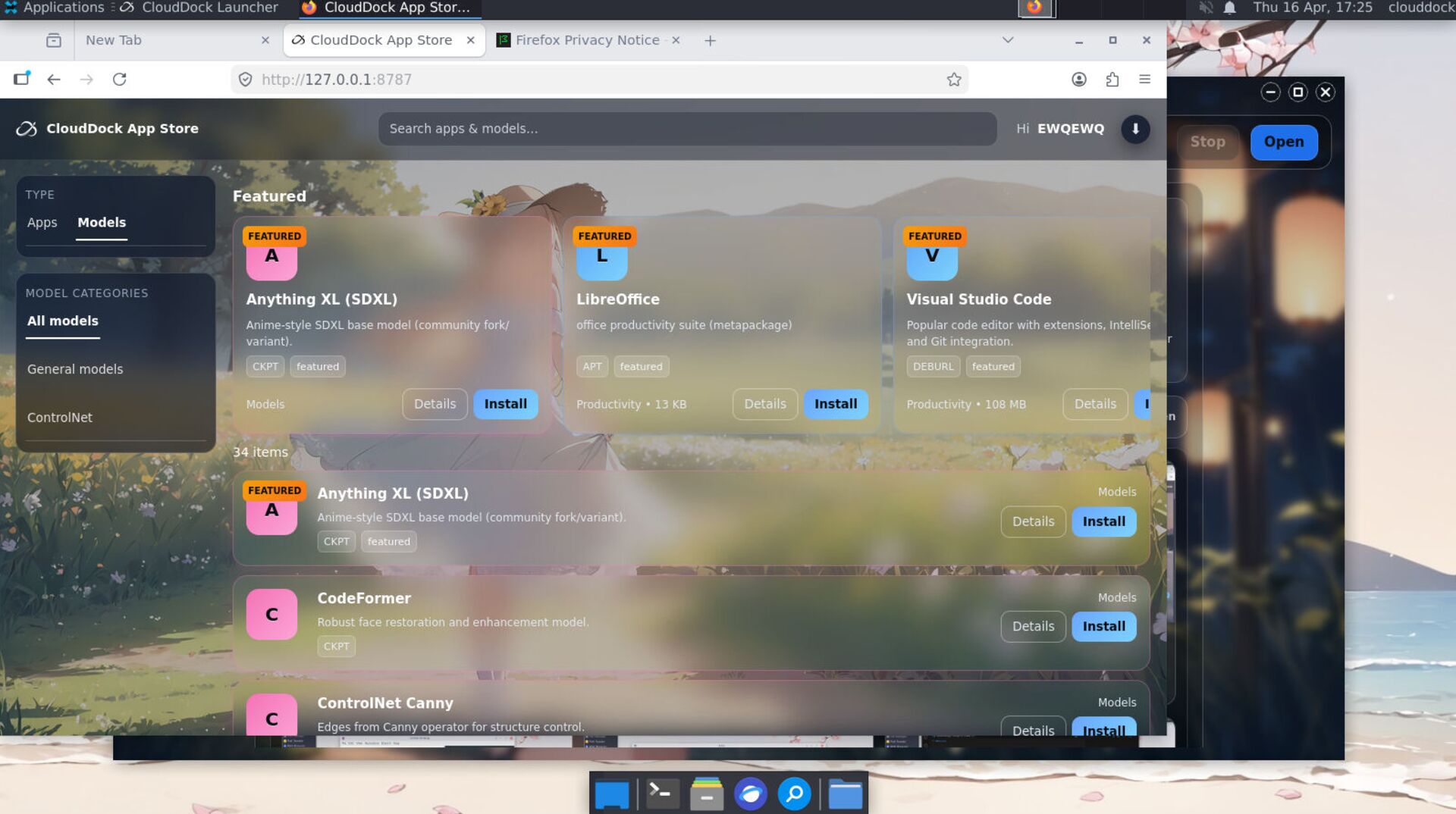
Modle
3Open publisher page and download from the source
Click a model card, then click Open (or similar).CloudDock will redirect you to the model's official publisher page (e.g., Hugging Face / Civitai).
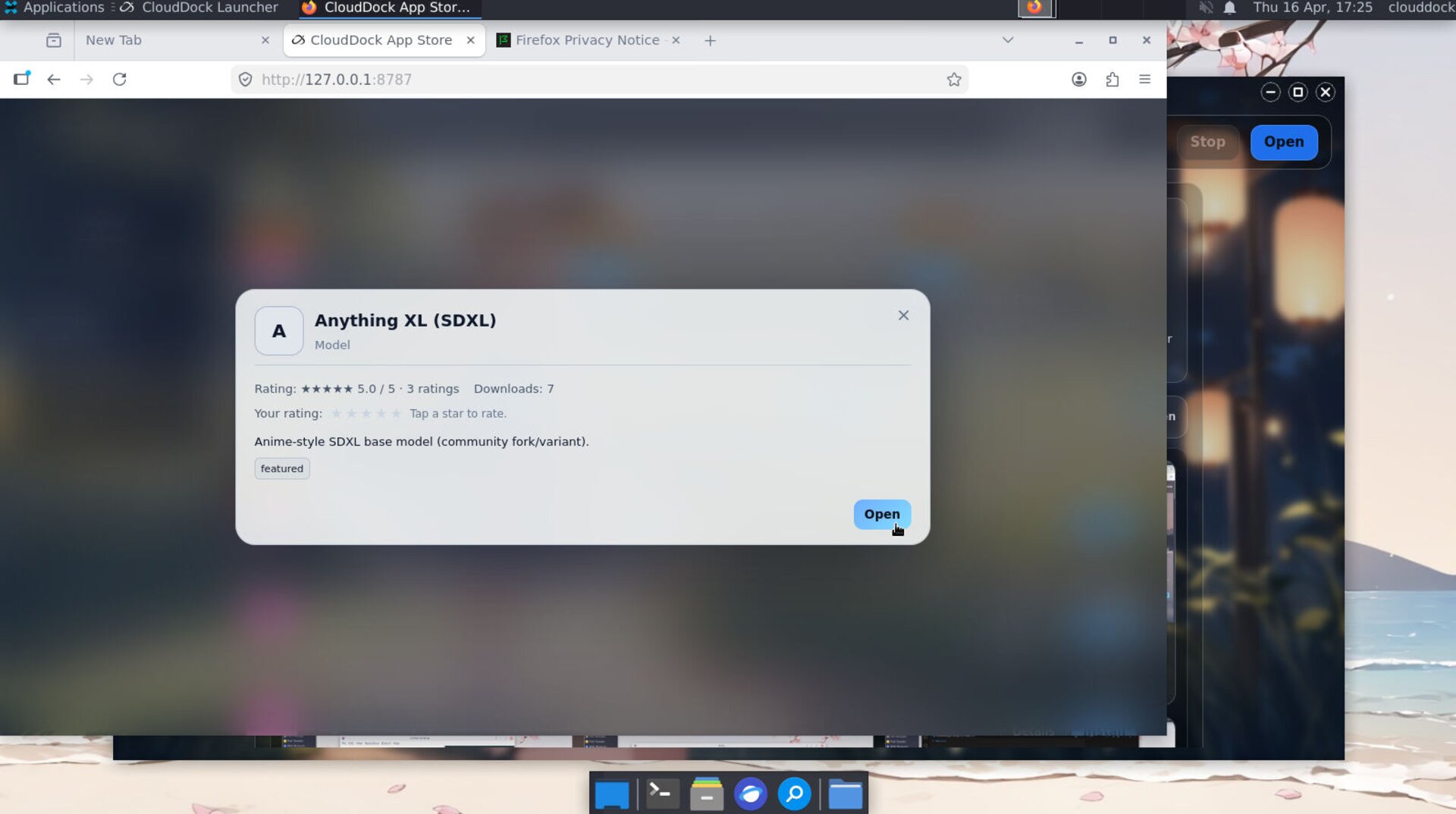
Open → redirected to the official publisher page to download.
Read the license/terms, then download from the publisher directly.
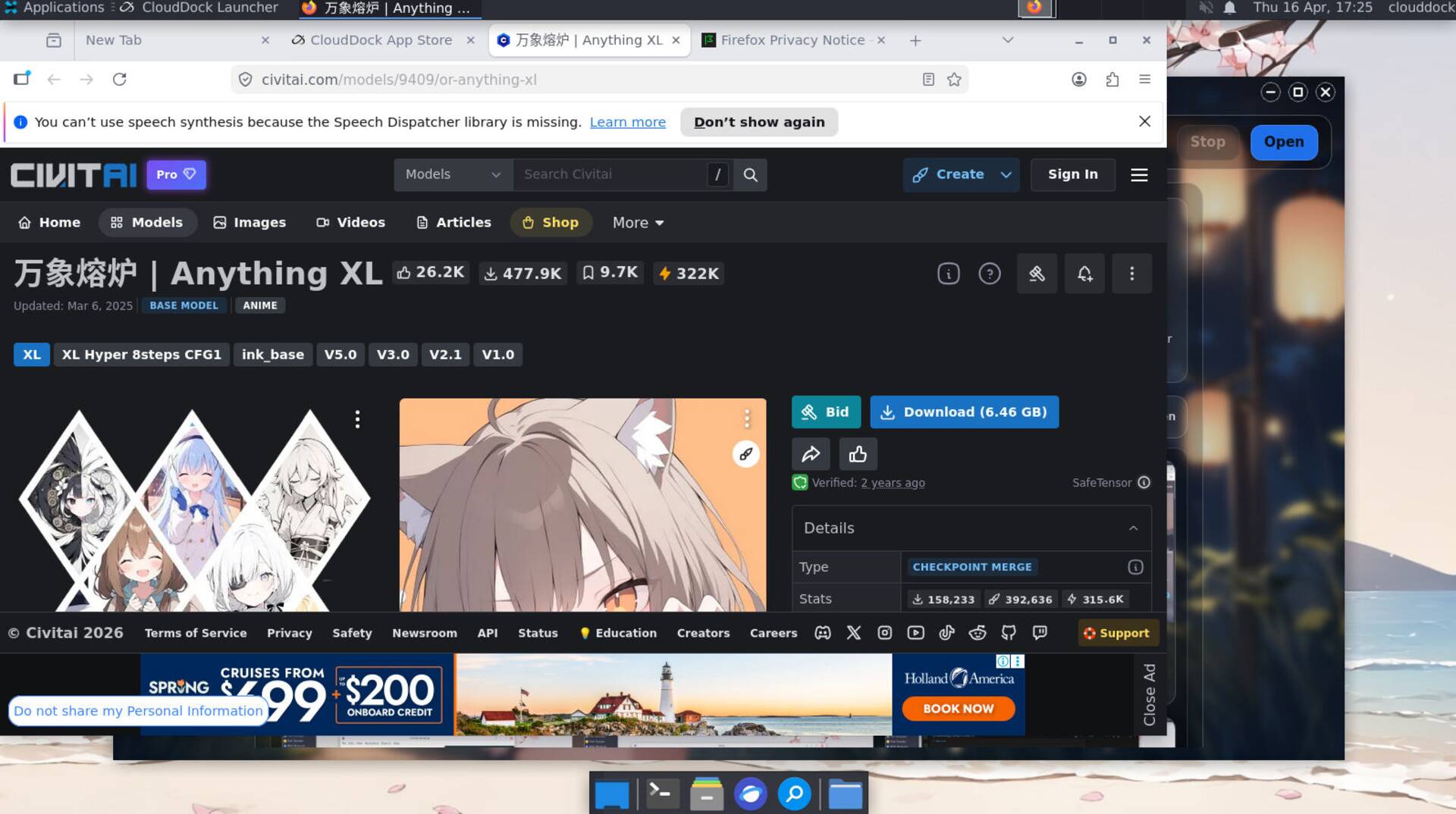
Model Website
After you download
- If the app you use supports a Models folder, move the downloaded file into that folder.
- Return to the app and click Refresh / Reload, or restart the app so the model appears.
- If you’re unsure where to place the file, follow the app’s own documentation (different tools use different paths).
Create the work you love.