

1Select Your Machine Group
Choose the GPU family that best suits your workload.
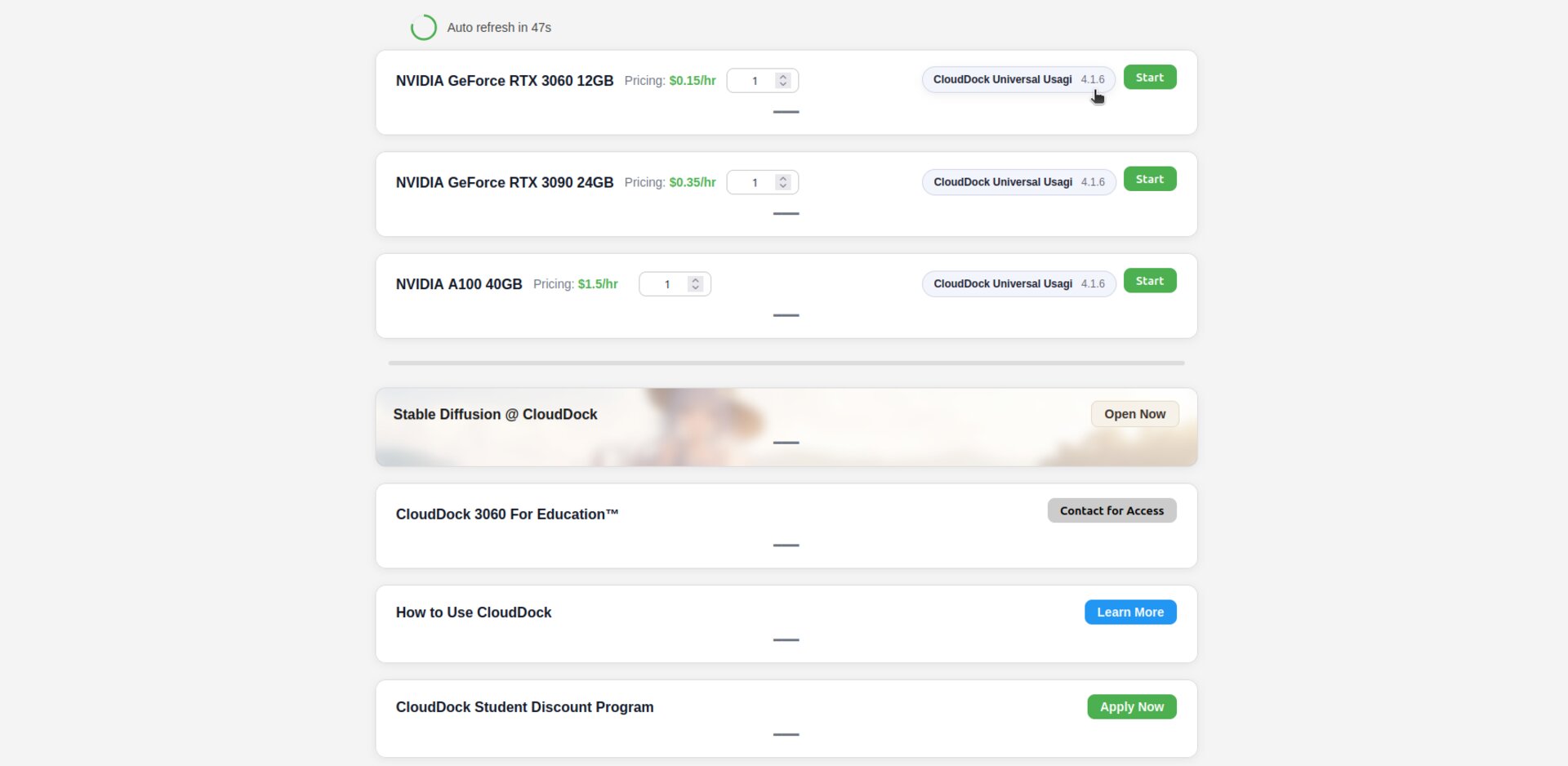
Select Machine Group
2Fill in the Required Time
Enter the desired hours (1 h minimum) in the duration field.
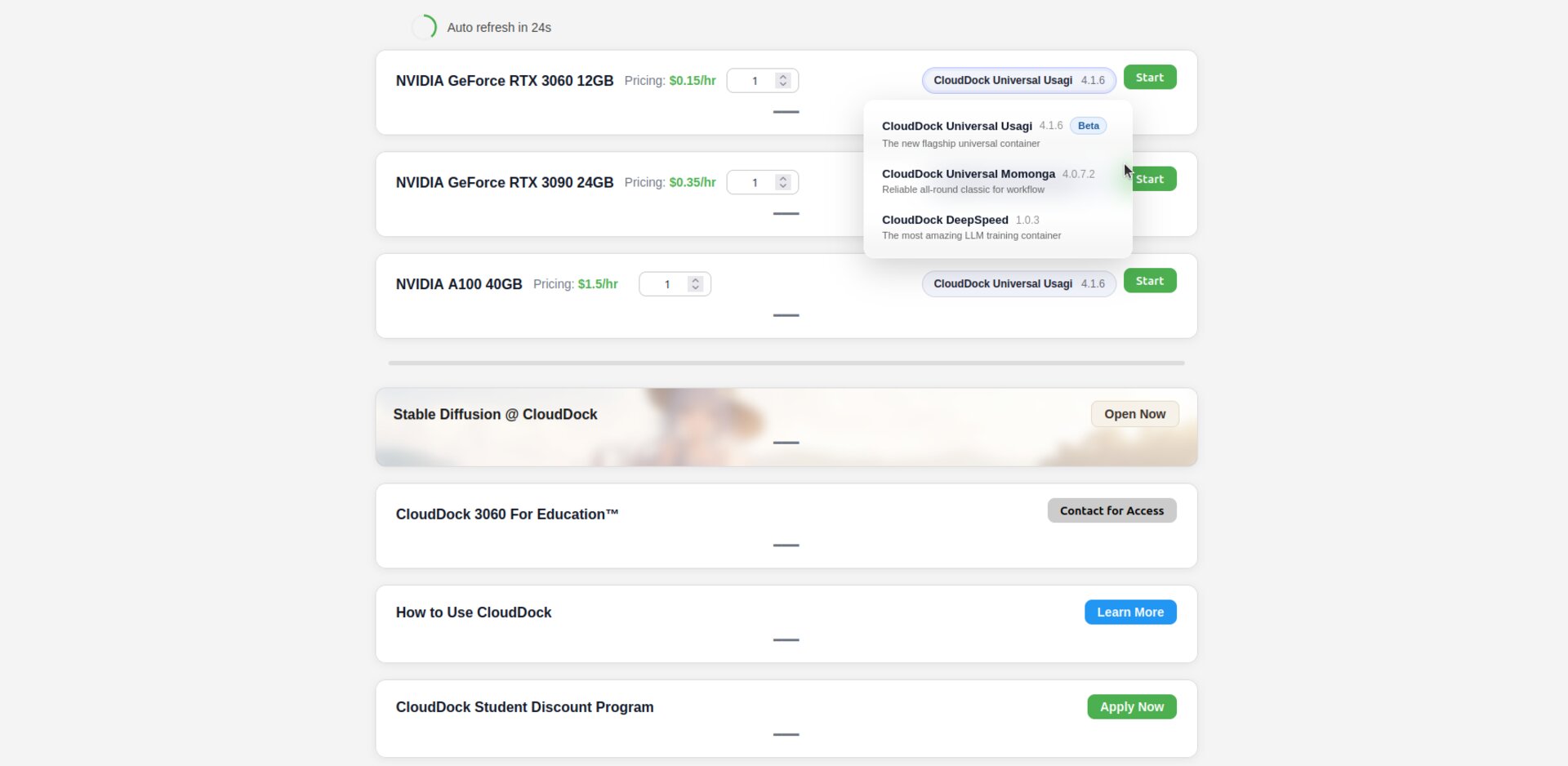
Fill in the Required Time
3Choose CloudDock Universal Image
First-time users should select CloudDock Universal for the full desktop experience.
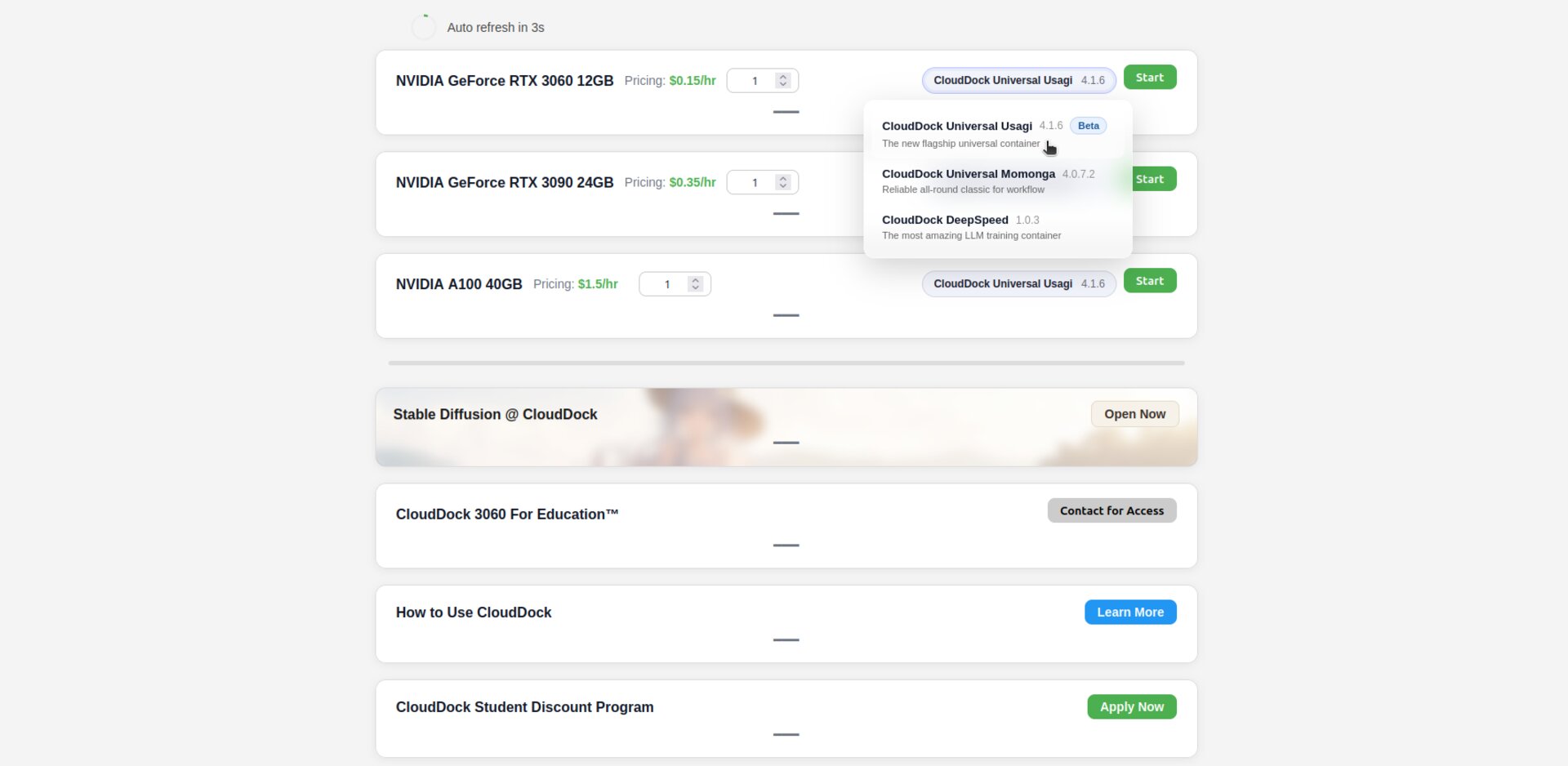
Choose CloudDock Universal Container
4Click Start to Begin
Press Start. If resources are free the instance launches immediately.
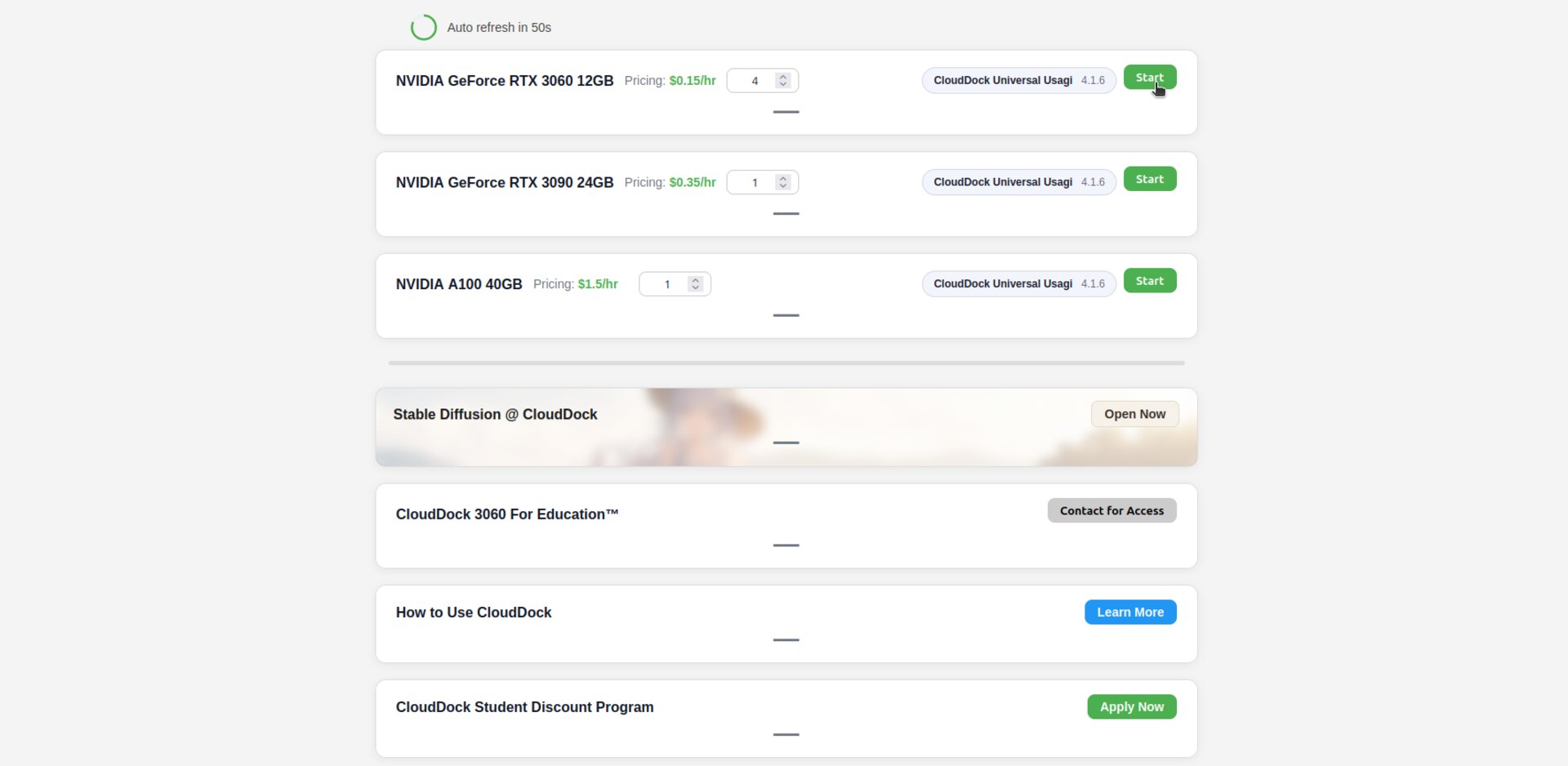
Click Start to Begin
5If It Shows Wait, Click Wait to Queue
When resources are full the button becomes Wait. Click it to enter the queue.
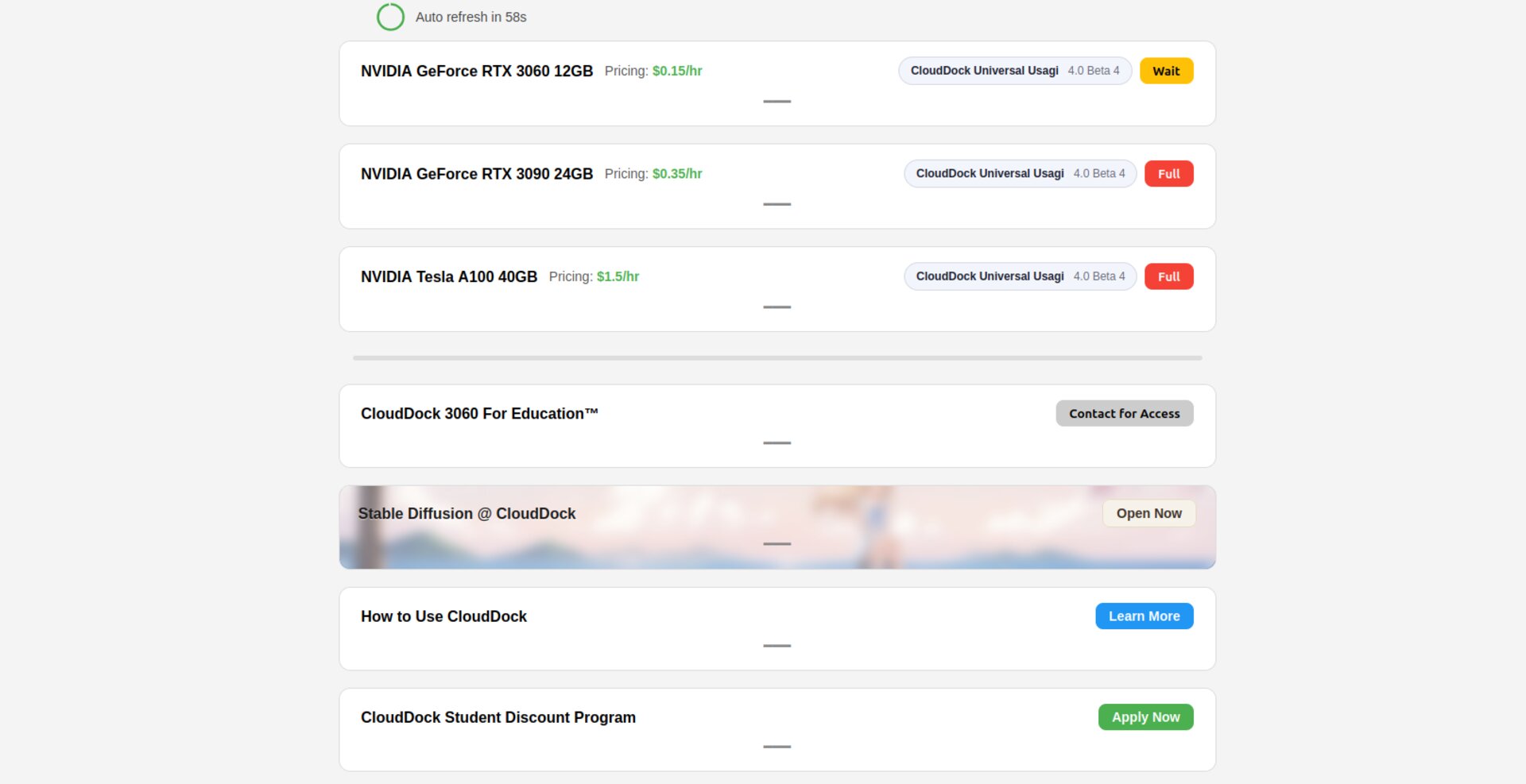
Wait
Note:To ensure fairness for all users, the "Extend Time" button will only appear when the machine queue is empty, the remaining time is greater than 5 minutes, and the system is not under maintenance.
6Click Continue to Enter Your Exclusive Desktop
After the instance is ready, click Continue to open your private desktop.
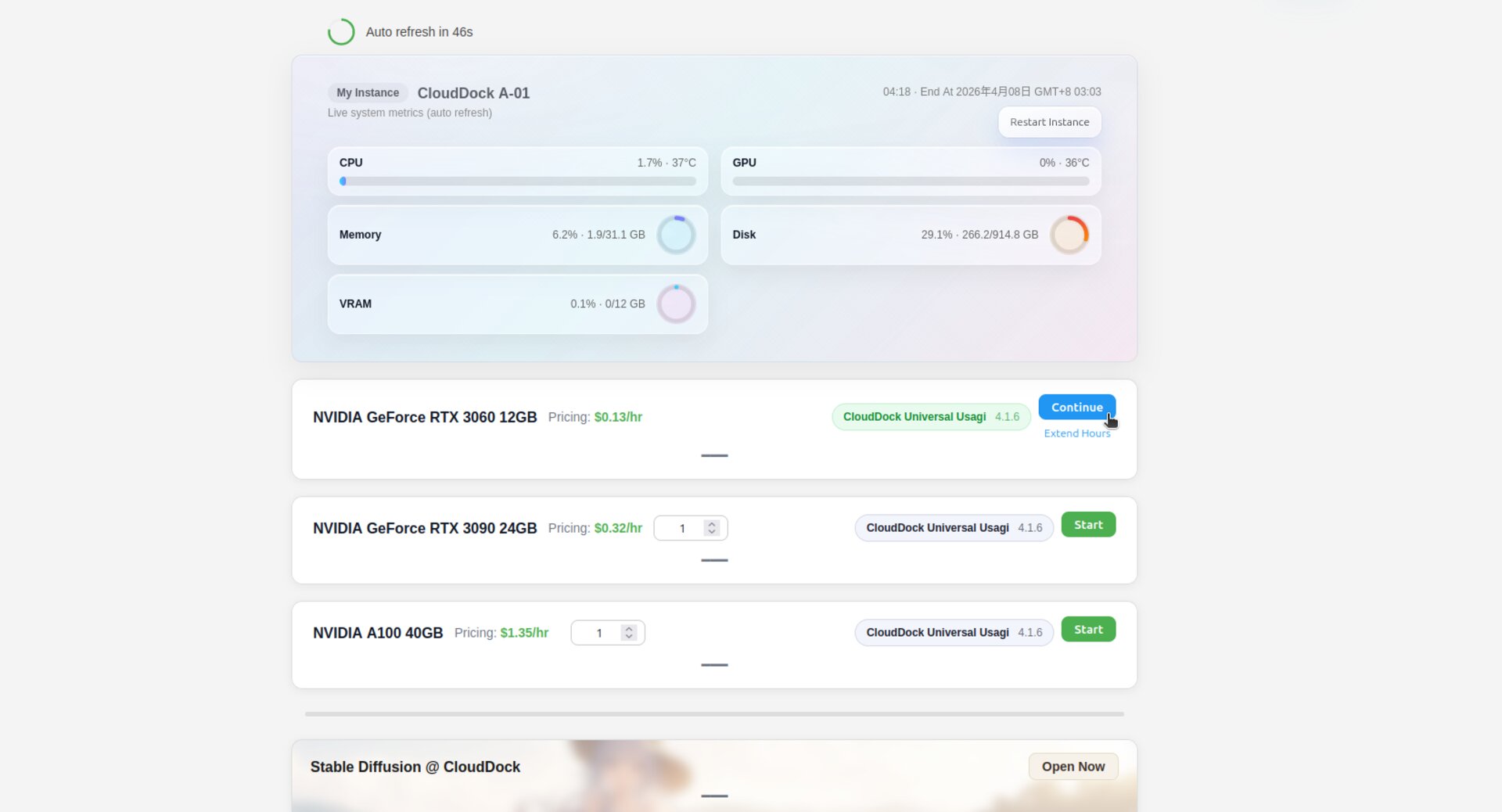
Enter Your Exclusive Desktop
7Check Time Left above the Continue Button
The area above the Restart Instance button displays remaining session time and the exact auto-shut-down time.
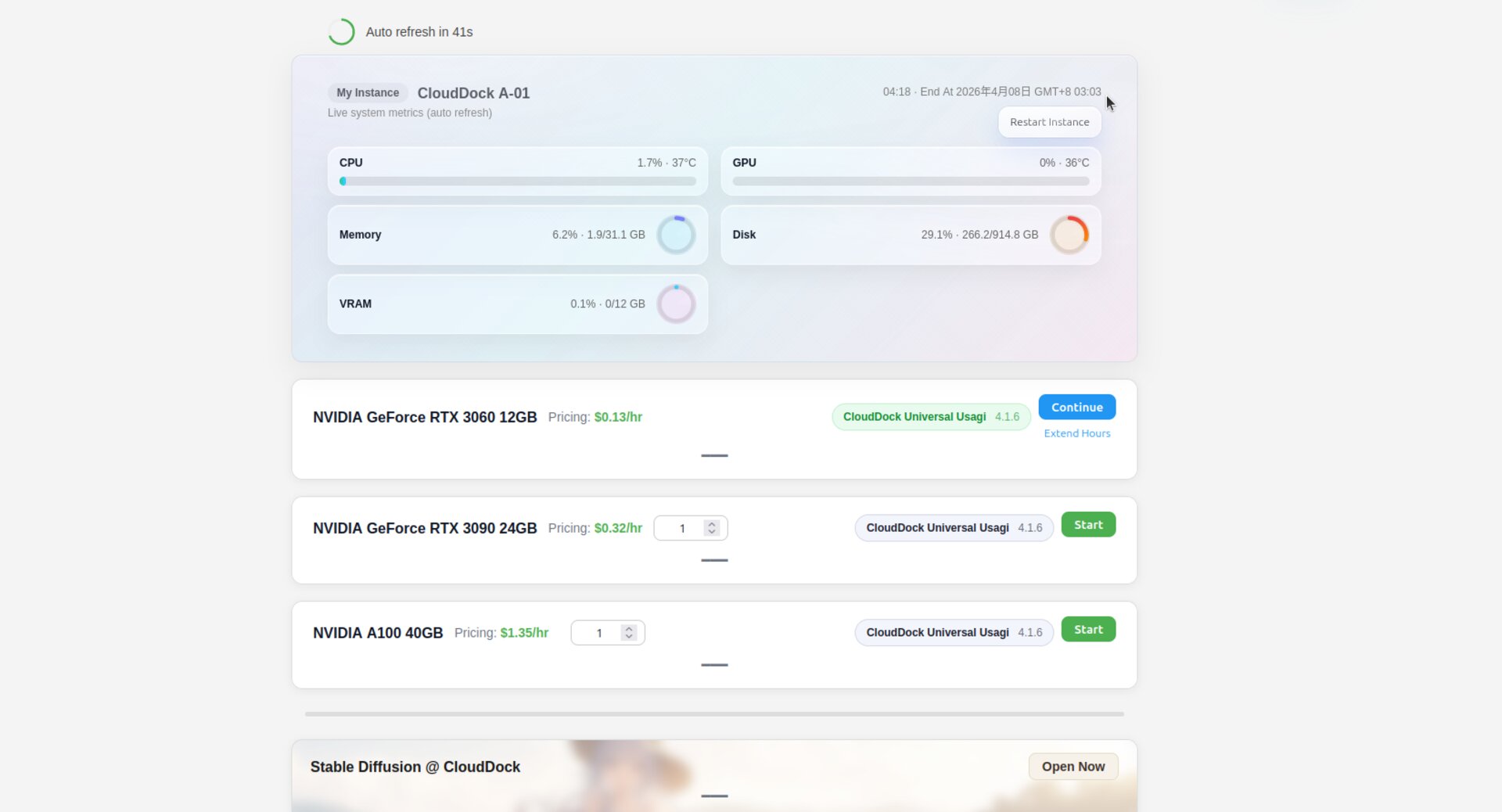
Check remaining time
Thank you for your patience and support. We wish you a smooth and efficient cloud journey!